Tips for Troubleshooting Report Design
Fixing Report Designer Warnings
Ensure there are no yellow triangle warnings shown in design time when editing your report definitions in the report designers. Hover the corresponding warning triangle to check the exact problem described in the tooltip.
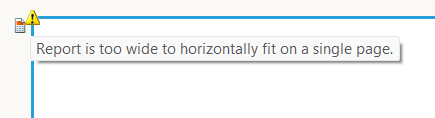
For example, the following image shows the tooltip of the warning stating that "Report is too wide to horizontally fit on a single page.":
To fix the above warning, you may:
- Decrease the Report
Width - Increase the Report Page Width in one of the following ways:
- Change the Report
PageSettings>PaperKindto a bigger one that will accommodate the content; - Inrease the Report
PageSettings>PaperSize>WidthforCustompaper kind; - Decrease the Report
PageSettings>Margins>Leftand/orRight.
- Change the Report
Check for Bindings and Conditional Formatting that may be altering the report layout only at runtime.
Troubleshooting Report Layout
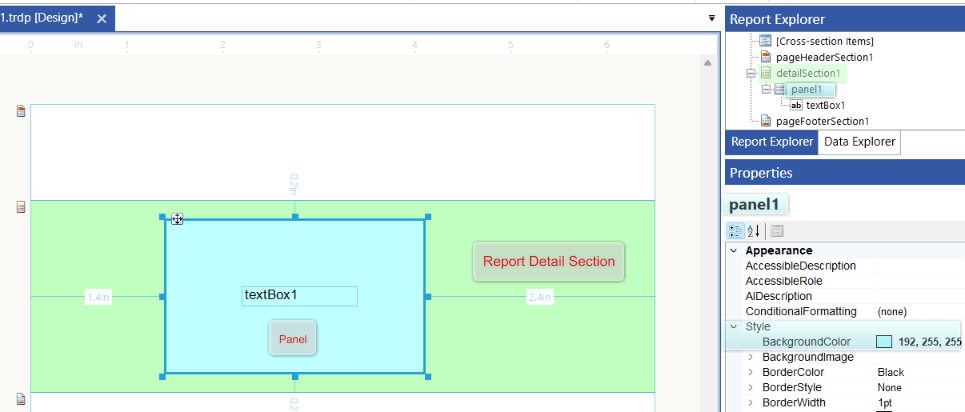
Use different Styles, for example, Background Color and Borders, to easily distinguish between report sections and items and identify which one is responsible for the observed inconsistency in the report layout. For complex reports, with many nested items, start by coloring the top-level containers first, and then dig deeper by coloring that container's nested items as well, until you find the item responsible for the issues.
Here is an example with the detail section and the Panel inside it easily distinguishable due to the background colors:
Data is Missing at Runtime
Ensure you have assigned the DataSource property of your Report or other data item, for example, Table or Graph:
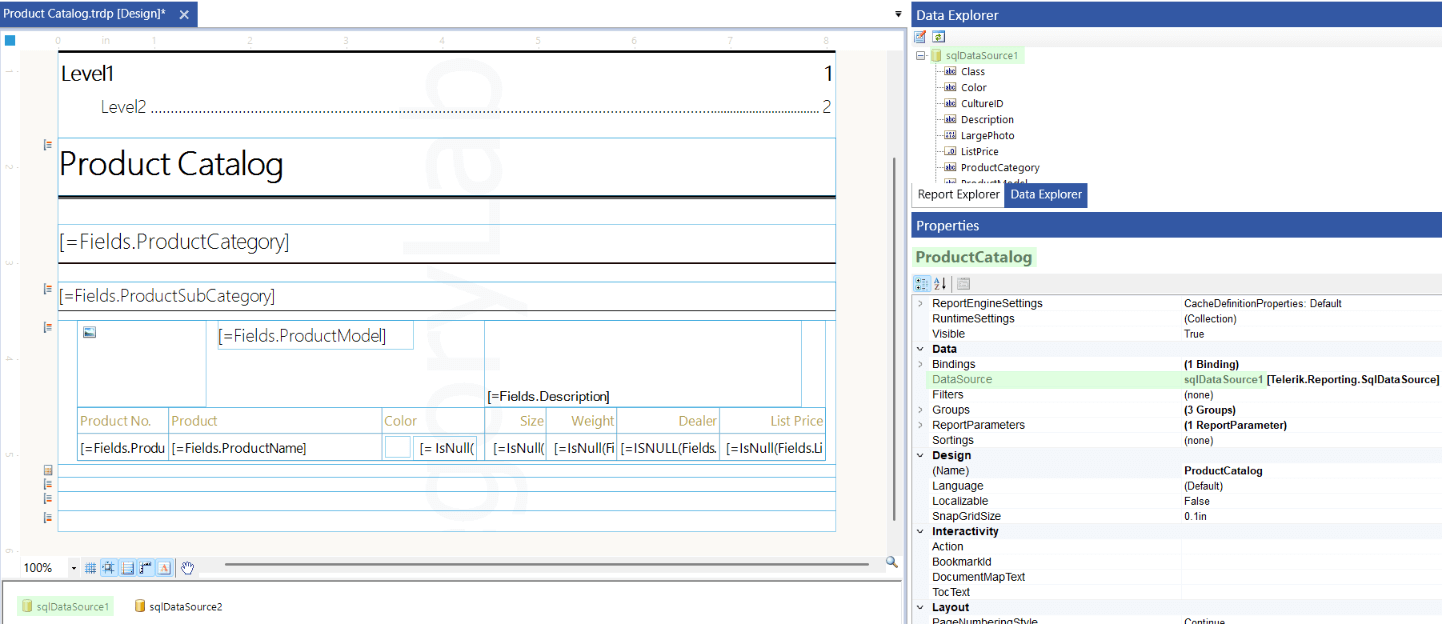
Alternatively, you may use Binding for the DataSource property to display the data only at runtime. With this approach, the Binding will override the DataSource property Value at runtime.
When displaying data in a TextBox or other report item, ensure it is in the correct data scope. This means that its parent data item should have as DataSource the corresponding source of data, for example, DataSource component.
Data is Multiplying at Runtime
The problem may occur if you have set the DataSource property of the Report item an inner data item (e.g., Table) in its detail section to the same value, for example, to the same DataSource component.
The reason for the issue is that the detail section of the data items (e.g., the Report) is rendered as many times as there are records in its data source. Therefore, when you place a Table in the Report detail section, it gets rendered as many times as the Report DataSource records. When the Table and the Report have the same DataSource, the Table will be rendered multiple times.
For fixing the problem, remove/reset the DataSource property value of the Report (parent data item).
In scenarios, where you need the same DataSource to be used in the Report and an inner data item (e.g., Table), consider the following approaches to avoid data multiplication:
- Place the inner data item (Table) in a Report Header/Footer section. These sections are generated once per report.
- Introduce a Report Group and place the inner data item (Table) in the [Group Header or Footer section]((/reporting/designing-reports/report-structure#group-header). These sections are generated once per group. Therefore, the Table will be displayed once per group.
- Limit inner data item (Table) data:
- Use Filtering to ensure the Table displays relevant data for the group or parent detail section.
- Use Binding to the parent data item in the Table's DataSource. In a Report Group this will ensure the data in the Table is relevant to the group. In Report detail section, the Binding will let the Table display only the current detail data record.
Expression Values
Use a temporary TextBox in the same data item or report section, ensuring the same scope to display the actually evaluated content in the Binding, Conditional Formatting or other Expressions.
Unexpected Page Breaks
Page Break Properties: Inspect the Report Sections for the
PageBreakproperty and Report Groups and the Table Groups for theGroupPageBreakproperty settings.Keep Together Settings: Most of the Report Items and Sections expose the property
KeepTogether. The Groups exposeGroupKeepTogether. When the property value isTrue, the Reporting Engine tries to render the entire item/section/group content on the same page. If it doesn't fit, it attempts to move the whole content to a new page. When the content fits on the new page, the previous page may remain partly blank. If this is not the desired outcome, ensure the corresponding report items/sections/groups have their keep together values set to false.Horizontal Pagination: Generally, the Report items grow only vertically to accommodate larger content. Only Crosstabs and Tables/Lists with column grouping, rotated Tables and SubReports may grow horizontally. In case of unexpected horizontal page breaks, inspect the items' runtime content.
Report Items Order in Accessibility
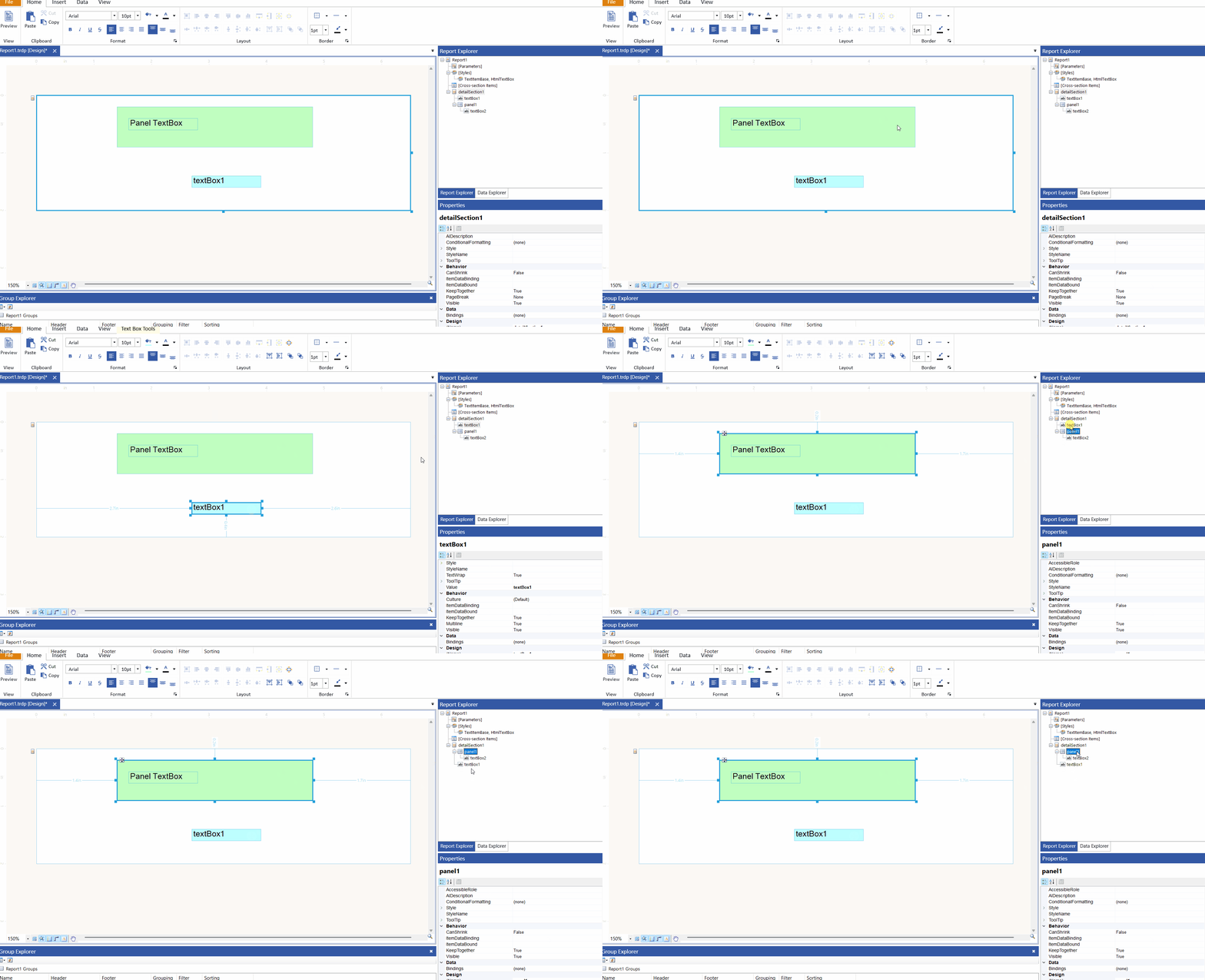
When enabling the Accessibility feature of your reports, the items will be read according to their logical item order. This order may be seen and changed in the Report Explorer] in the report designers.
By default, the Report Items appear in the Report Explorer in the order they have been added to the report definition. Therefore, if you place an item added later at the top of the report, it may be shown in the Report Explorer before items appearing lower in the report section, despite being added before.
Consider reordering the items the way they must appear when using Accessibility by dragging the items in the Report Explorer:
Type Reports in Visual Studio Report Designer
The Visual Studio Report Designer for .NET Framework automatically generates the code for the CS/VB reports and stores it in the InitializeComponent method of the file ReportName.designer.cs/ReportName.Designer.vb. Check the file for errors if the report cannot be opened in the report designer.