Mapping Figma Variables to ThemeBuilder
Environment
| Product | Version |
|---|---|
| ThemeBuilder | Q2 2025 and above |
Description
When working with the ThemeBuilder plugin for Figma, you may need to synchronize (map) variables from Figma with existing variables in your ThemeBuilder project. This knowledge base article provides a step-by-step guide for explicitly mapping variables from Figma to Progress® ThemeBuilder using Figma's code syntax feature and the ThemeBuilder plugin for Figma.
This approach ensures that your design tokens remain consistent between Figma and your final application, enabling a seamless design-to-code workflow.
Common Use Cases
This article addresses the following scenarios:
- Variable synchronization: How to export and map Figma variables to ThemeBuilder for a consistent theme
- Design system maintenance: How to ensure Figma design changes are accurately reflected in ThemeBuilder
- Custom variable mapping: How to connect custom Figma variables with existing ThemeBuilder variables
Solution
Prerequisites
Before you begin, ensure that you have:
- A ThemeBuilder project with existing variables
- A Figma design file with custom variables
- The ThemeBuilder plugin for Figma installed and configured
Step-by-Step Process
Let's walk through a practical example where you're working with a ThemeBuilder project based on the Kendo Material theme. In this scenario, you want to modify an existing Kendo variable called $kendo-color-app-surface by mapping it to a custom Figma variable named $my-app-surface.
Note: If you're using the official Kendo & Telerik UI Kits, refer to this automated mapping guide instead.
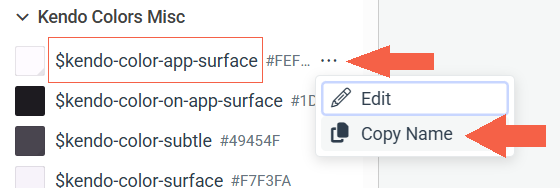
1. Copy the ThemeBuilder Variable Name
- Navigate to your ThemeBuilder project and locate the variable you want to map (in this example,
$kendo-color-app-surface). -
Right-click on the variable and select Copy Name from the context menu.
2. Configure the Figma Variable Code Syntax
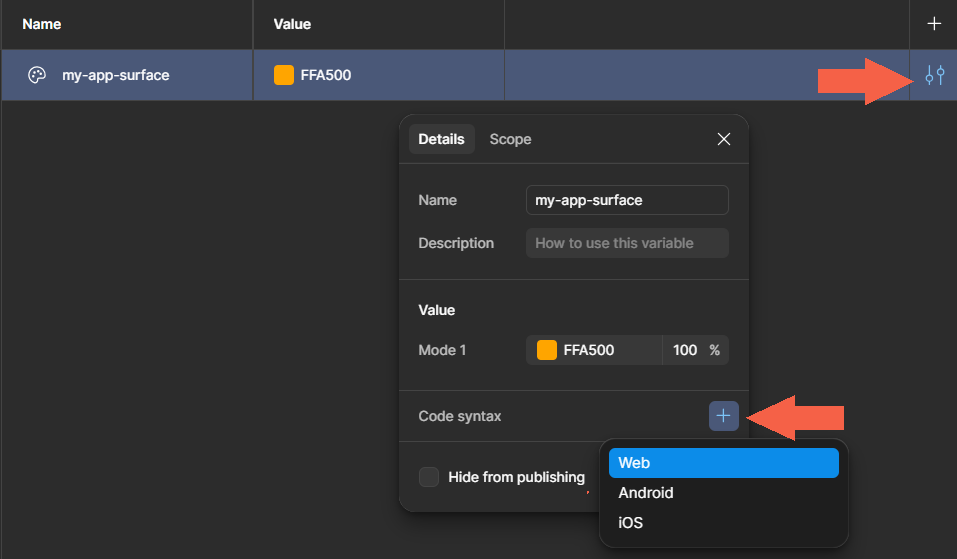
- In Figma, open the Variables panel from the left sidebar.
- Locate your custom Figma variable (in this example,
$my-app-surface). - Click the Edit Variable button (pencil icon) next to your variable.
-
In the variable edit dialog, find the Code Syntax section and click the "+" button to add a new code syntax entry.
3. Set Up Web Code Syntax
- In the code syntax dropdown, select Web as the platform.
- Delete the existing auto-generated name in the text field.
-
Paste the ThemeBuilder variable name you copied in step 1 (e.g.,
$kendo-color-app-surface).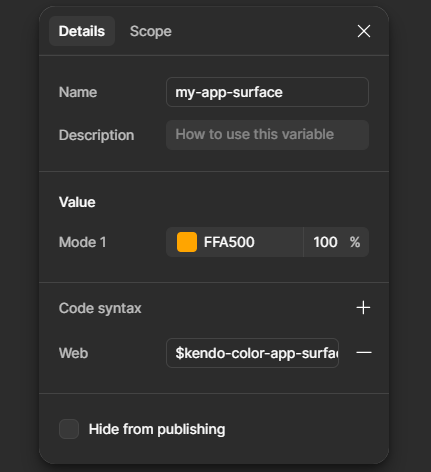
Click outside the dialog or press Enter to save the changes.
- Close the Variables panel to preserve your modifications.
4. Export the Variable Using ThemeBuilder Plugin
- Launch the ThemeBuilder plugin for Figma from the plugins menu.
- Navigate to the variable export section and export the color variable.
-
In the variable selection screen, select your modified Figma variable (
$my-app-surface).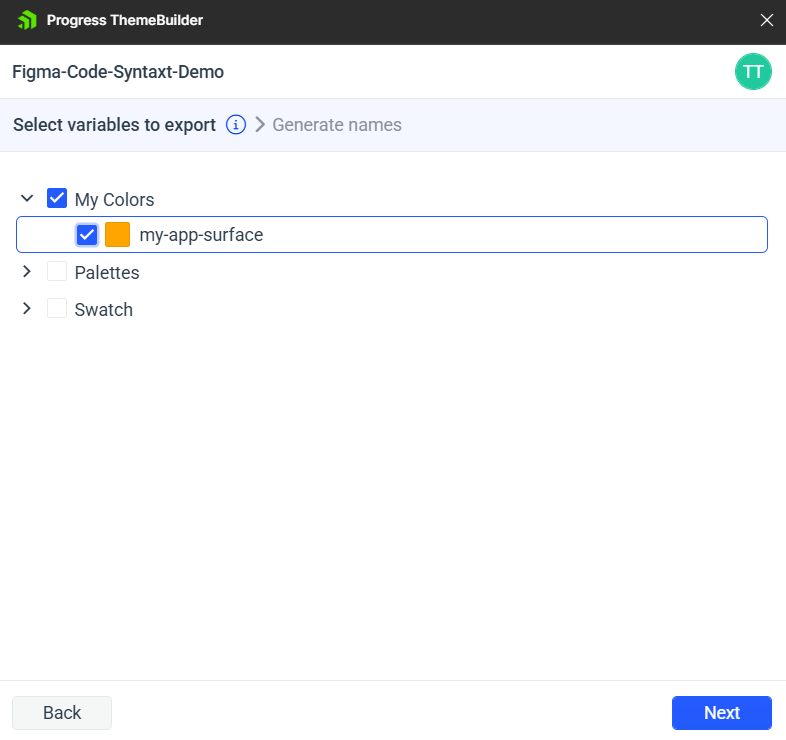
-
In the name generation screen, keep the variable name unchanged (the code syntax you configured will be used automatically).
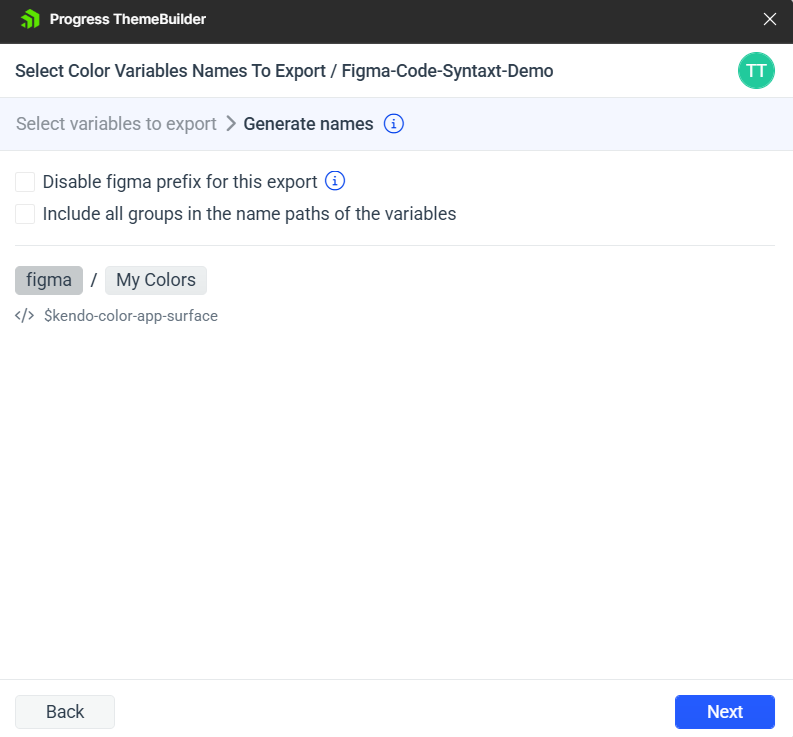
Complete the export process.
Results
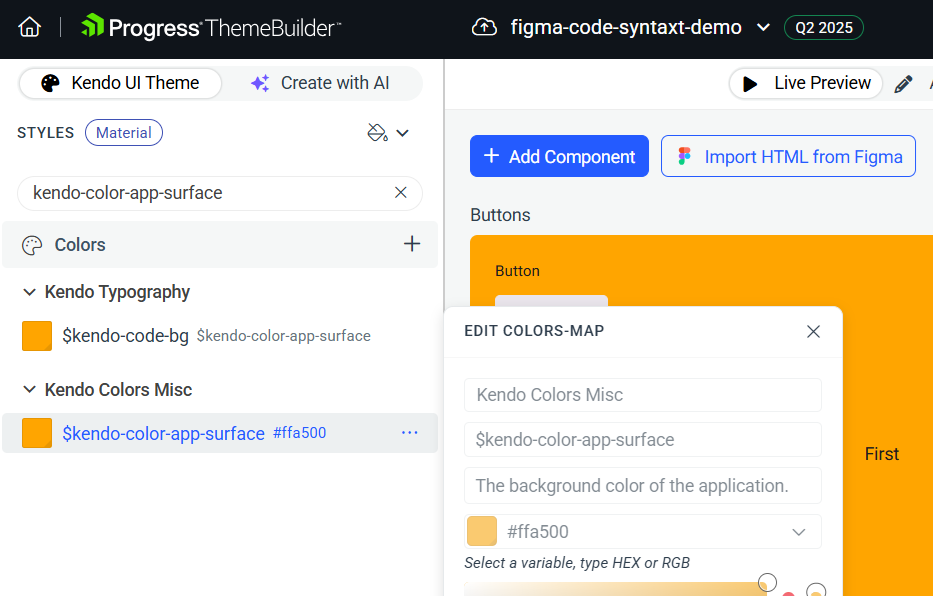
Once the variable export is complete, your Figma variable will be explicitly mapped to the target Kendo variable in your ThemeBuilder project. The mapping ensures that any changes made to the Figma variable will be reflected in the corresponding ThemeBuilder variable.
Best Practices
- Naming consistency: Use consistent naming conventions between Figma and ThemeBuilder variables
- Documentation: Keep track of your variable mappings for team collaboration
- Testing: Always test the exported variables in your application to ensure they work as expected
- Version control: Document variable mapping changes in your project's version control system