Telerik Reporting MCP Server (NuGet)
The Telerik Reporting MCP (Model Context Protocol) Server is also available as a NuGet package. This NuGet distribution exposes the same AI Coding Assistant functionality as the npm package.
Beginning with .NET 10, it can be executed directly via the dnx command. For .NET 8 and .NET 9 (where dnx is not available), you can install it as a global dotnet tool and invoke its executable.
Prerequisites
| Target Runtime | Required SDK | Invocation Method | Notes |
|---|---|---|---|
| .NET 8 / .NET 9 | .NET 8 or .NET 9 SDK | dotnet tool |
dnx not supported; install tool manually |
| .NET 10 | .NET 10 SDK (Preview 6 or newer) |
dnx dynamic execution |
Simplest approach; no prior install step |
Additional requirements:
- A Telerik user account.
- An active license covering the usage of Telerik Reporting.
- An application that uses the Telerik Reporting.
Summary of Installation Approaches
| Aspect | .NET 8 / 9 | .NET 10 |
|---|---|---|
Availability of dnx
|
Not available | Available |
| Install Command | dotnet tool install Telerik.Reporting.MCP |
None (resolved on demand) |
| .mcp.json Command | dotnet |
dnx |
| .mcp.json Args | telerik-reporting-assistant |
Telerik.Reporting.MCP, --yes
|
| Update Version | Re-run tool install with --version or tool update
|
Handled by latest package resolved by dnx
|
| Offline Use | Requires prior tool install | Requires prior NuGet cache warm-up |
Server Installation
.NET 8 / .NET 9
Install the MCP server as a local tool in your solution root (or another chosen path):
dotnet tool install -g Telerik.Reporting.MCP
If updating:
dotnet tool update -g Telerik.Reporting.MCP
These commands install/update the Telerik Reporting MCP dotnet tool globally. Global tools are installed in the following directories by default when you specify the -g or --global option:
- Windows -
%USERPROFILE%\.dotnet\tools - Linux/MacOS -
$HOME/.dotnet/tools
.NET 10
No manual install step is needed. The dnx command will download and execute the NuGet package on demand.
Server Configuration
.NET 8 / .NET 9 Configuration (.mcp.json)
Add a .mcp.json file to your solution root (or to %USERPROFILE% for global usage):
{
    "servers": {
    "telerik-reporting-assistant": {
        "type": "stdio",
        "command": "dotnet",
        "args": ["telerik-reporting-assistant"],
        "env": {
            "TELERIK_LICENSE_PATH": "THE_PATH_TO_YOUR_LICENSE_FILE"
            }
        }
    }
}
If you prefer embedding the license string directly:
"env": {
    "TELERIK_LICENSE": "YOUR_LICENSE_KEY"
}
.NET 10 Configuration (.mcp.json)
Use these settings when configuring the server in your MCP client:
{
    "servers": {
        "telerik-reporting-assistant": {
            "type": "stdio",
            "command": "dnx",
            "args": [
                "Telerik.Reporting.MCP",
                "--yes"
            ],
            "env": {
                "TELERIK_LICENSE_PATH": "THE_PATH_TO_YOUR_LICENSE_FILE"
            }
        }
    }
}
You may substitute TELERIK_LICENSE instead of TELERIK_LICENSE_PATH (see License Configuration section below for details and recommendations). The inputs array is optional and not required for the current functionality.
After saving the file, restart Visual Studio and enable the telerik-reporting-assistant tool in the Copilot Chat window's tool selection dropdown.
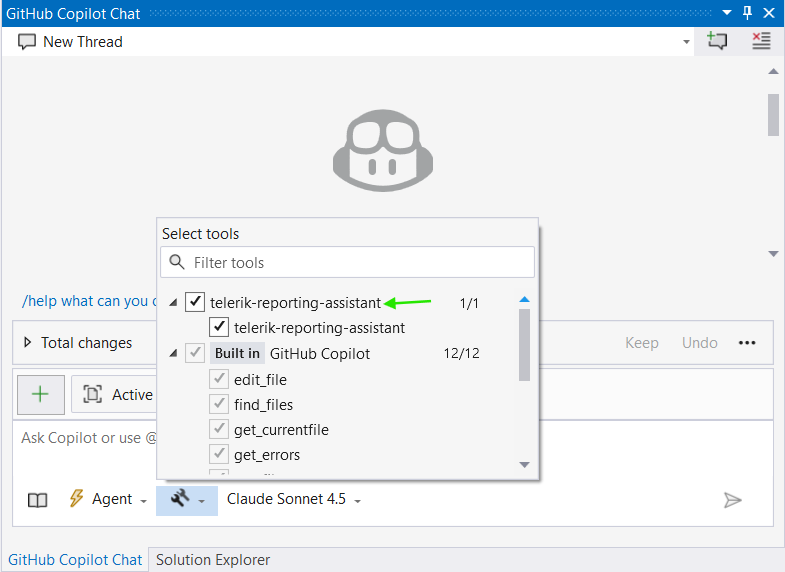
Global Setup
To enable the server globally for all projects, add the .mcp.json file to your user directory (%USERPROFILE%, e.g., C:\Users\{YourName}\.mcp.json).
Telerik Visual Studio Extension Setup:
The .mcp.json file can be created and updated by using the Telerik Visual Studio Extension menu in Visual Studio.
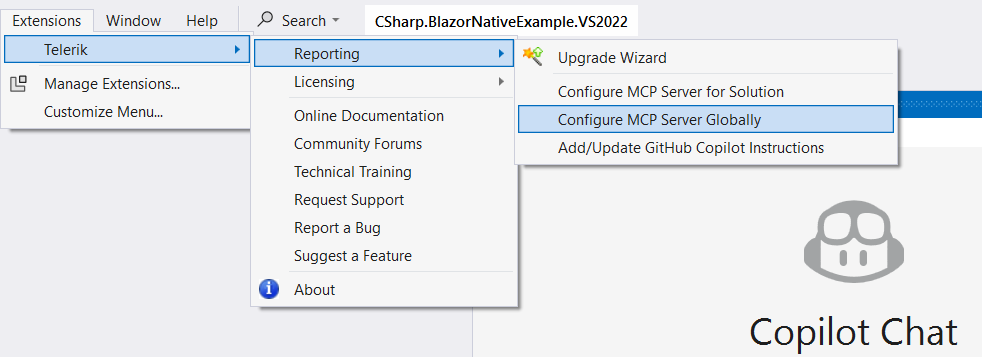
The Configure MCP Server Globally option creates (or updates if existing) the global %USERPROFILE%\.mcp.json file and adds the Telerik server entry.
The Configure MCP Server for Solution option is visible only if you have a project opened in Visual Studio. The option creates (or updates if existing) the .mcp.json file in the solution directory.
The Add/Update GitHub Copilot Instructions option is visible only if you have a project opened in Visual Studio. The option creates (or updates if existing) an copilot-instructions.md file in the .github\ folder of the solution (\SolutionDir\.github\copilot-instructions.md), which includes extra context that is automatically used with the prompt given to the Copilot chat in Visual Studio.
License Configuration
Add your Telerik license key using one of these options in the env section.
Option 1: License File Path (Recommended)
"env": {
    "TELERIK_LICENSE_PATH": "THE_PATH_TO_YOUR_LICENSE_FILE"
}
The THE_PATH_TO_YOUR_LICENSE_FILE should point to the telerik-license.txt file, usually in the AppData folder. Often it will look like:
"TELERIK_LICENSE_PATH": "%appdata%/Telerik/telerik-license.txt"
Option 2: Direct License Key
"env": {
    "TELERIK_LICENSE": "YOUR_LICENSE_KEY_HERE"
}
Option 1 is recommended unless you're sharing settings across different systems. Remember to update your license key when necessary.
Visual Studio Usage
After configuration and restart:
- Open Copilot Chat.
- Enable the
telerik-reporting-assistanttool. - Grant permissions when prompted (per session, workspace, or always).
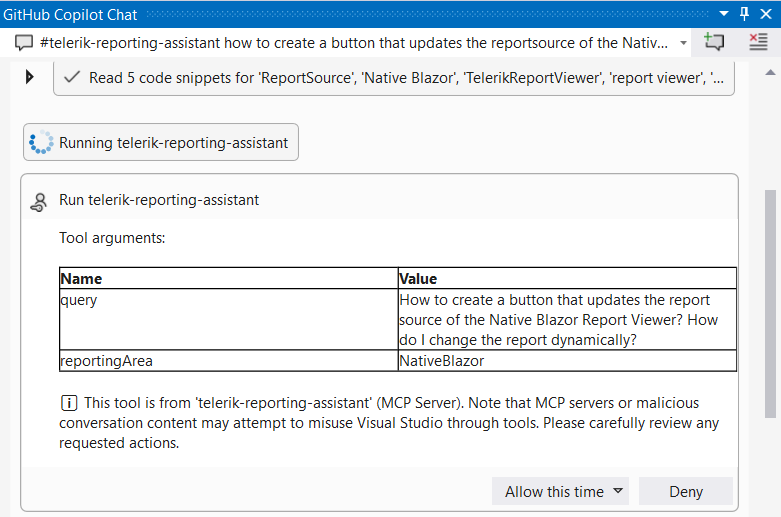
Start fresh sessions for unrelated prompts to avoid context pollution. You can check the Output pane of Visual Studio for diagnostics (select output from GitHub Copilot).
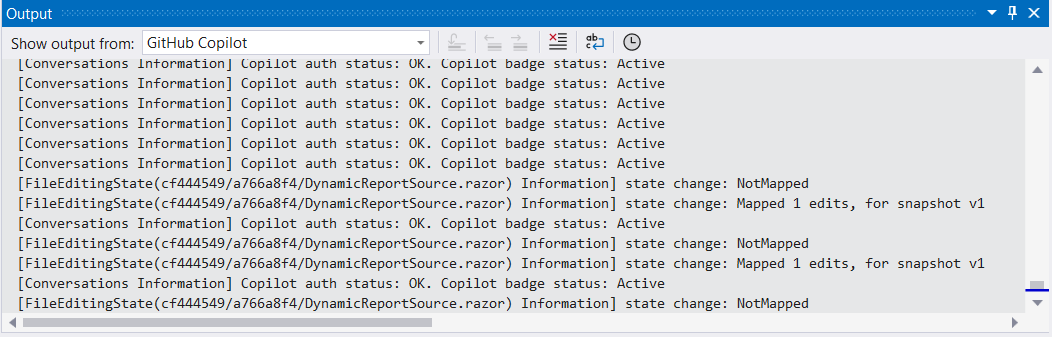
Usage
Begin prompts with any of these triggers to explicitly invoke the server:
-
/telerik/@telerik/#telerik -
/telerikreporting/@telerikreporting/#telerikreporting #telerik-reporting-assistant
Sample Prompts
Examples you can try:
#telerik-reporting-assistant How do I set up the Telerik Reporting REST Service in an ASP.NET Core project that targets .NET 10?#telerik-reporting-assistant Can I use a database as a storage for my report files in the Reporting REST service? Show me an example.#telerik-reporting-assistant How to change the displayed report after a button is clicked in the Native Blazor Report Viewer?