How to Address Mismatch in Server Load During Load Test Runs
Description
I designed a load test in Telerik Test Studio to simulate multiple users, but the server only receives a fraction of the intended traffic. Requests per second do not match the test design, even though CPU and memory usage on both the site server and the hosting virtual machine have sufficient capacity. I need to troubleshoot why the traffic isn't being generated correctly.
This knowledge base article also answers the following questions:
- How do I fix low server traffic during load tests in Telerik Test Studio?
- How do I adjust user profiles and dynamic targets in Telerik Test Studio load tests?
- How can I simulate accurate server load with multiple concurrent users in Test Studio?
Solution
To ensure proper load simulation and address the discrepancy in server traffic, you need to adjust the load test user profile to handle all requests correctly. Follow each of these steps for this:
Note!
All images listed in the article are for illustrative purposes and do not reflect any real life scenario. The required adjustments are unique to the specific captured traffic in each user profile and need to be carefully determined!
Adjusting the User Profile
-
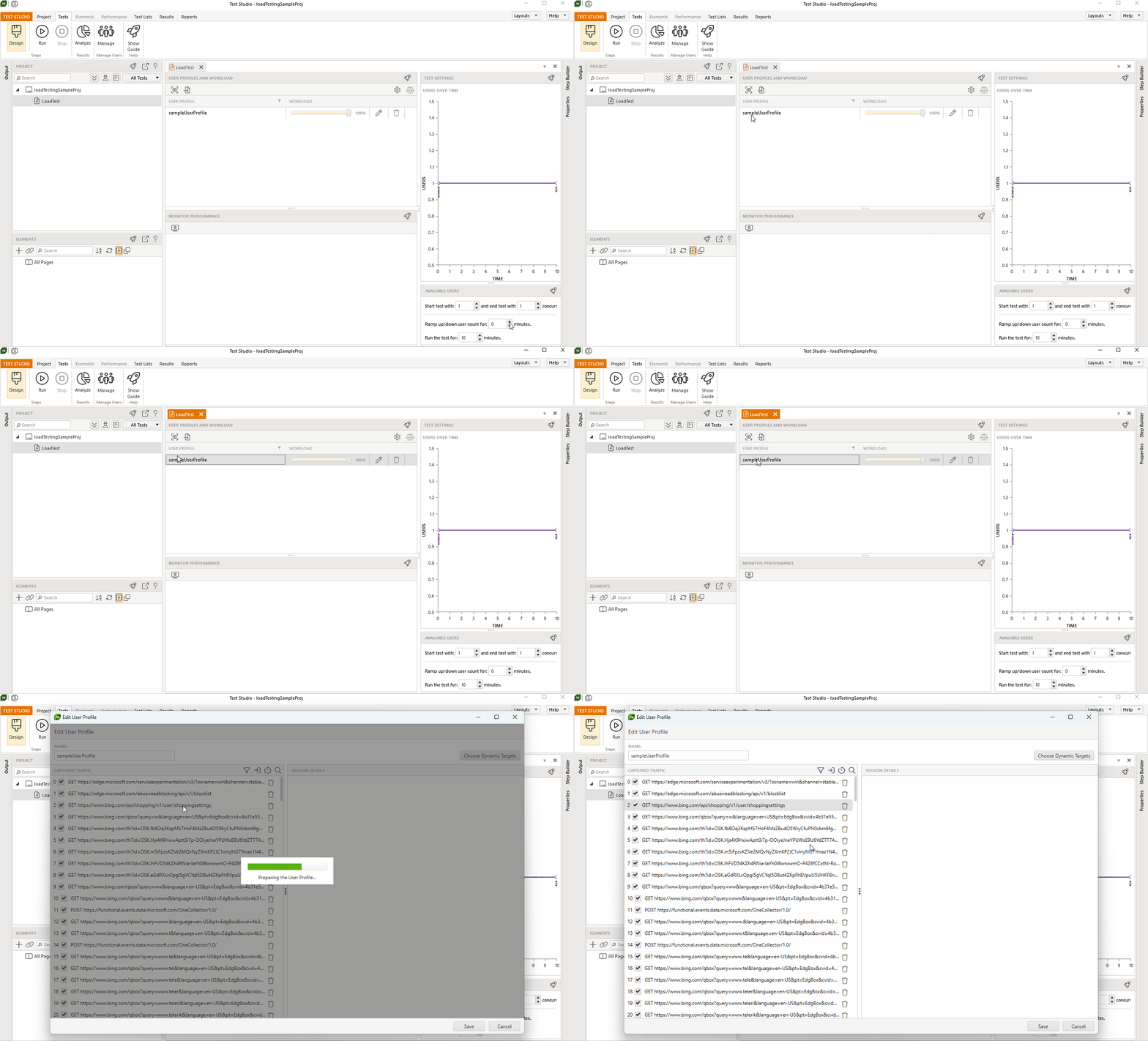
Open the user profile created for the load test in Edit mode (double click the profile to work with it). This profile is based on the HTTP(S) traffic captured during the execution of the base web test scenario used to generate the user profile.
-
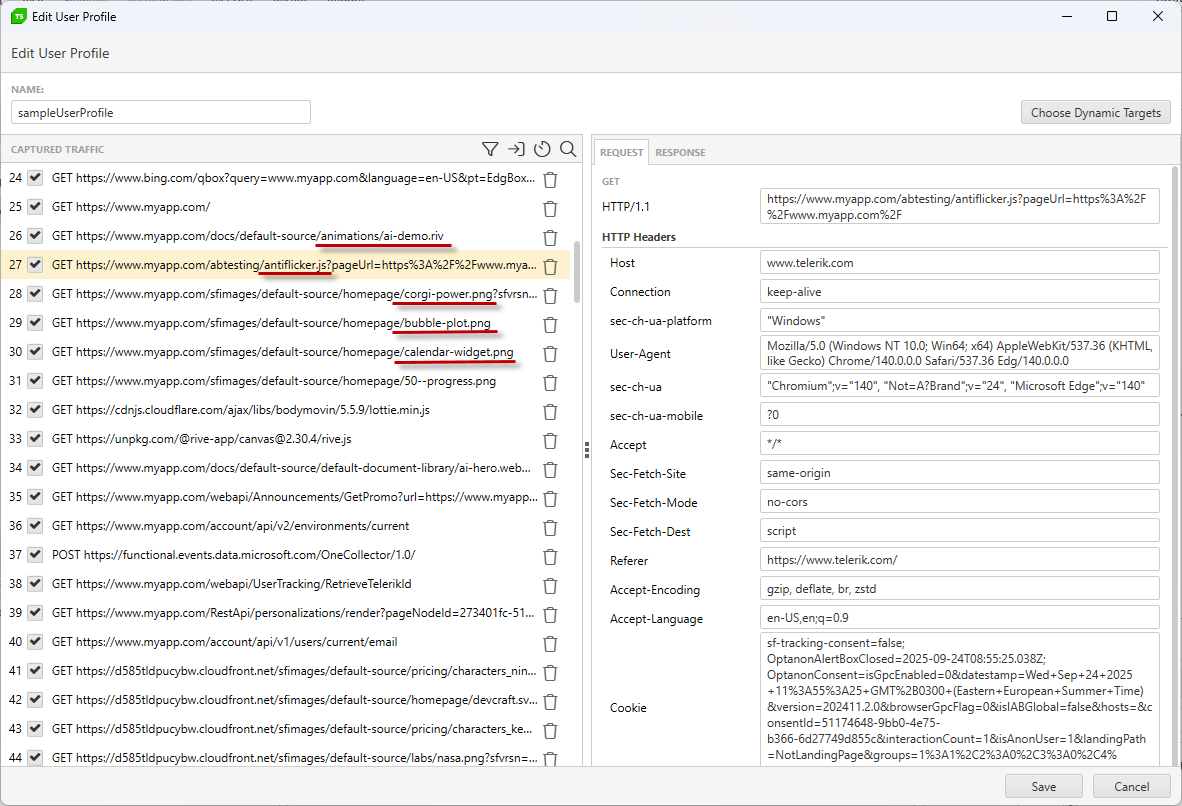
Remove requests for visual resources such as JavaScript scripts, CSS files, images, fonts, and icons. These requests are unnecessary for load testing since load test doesn't use the application UI.
-
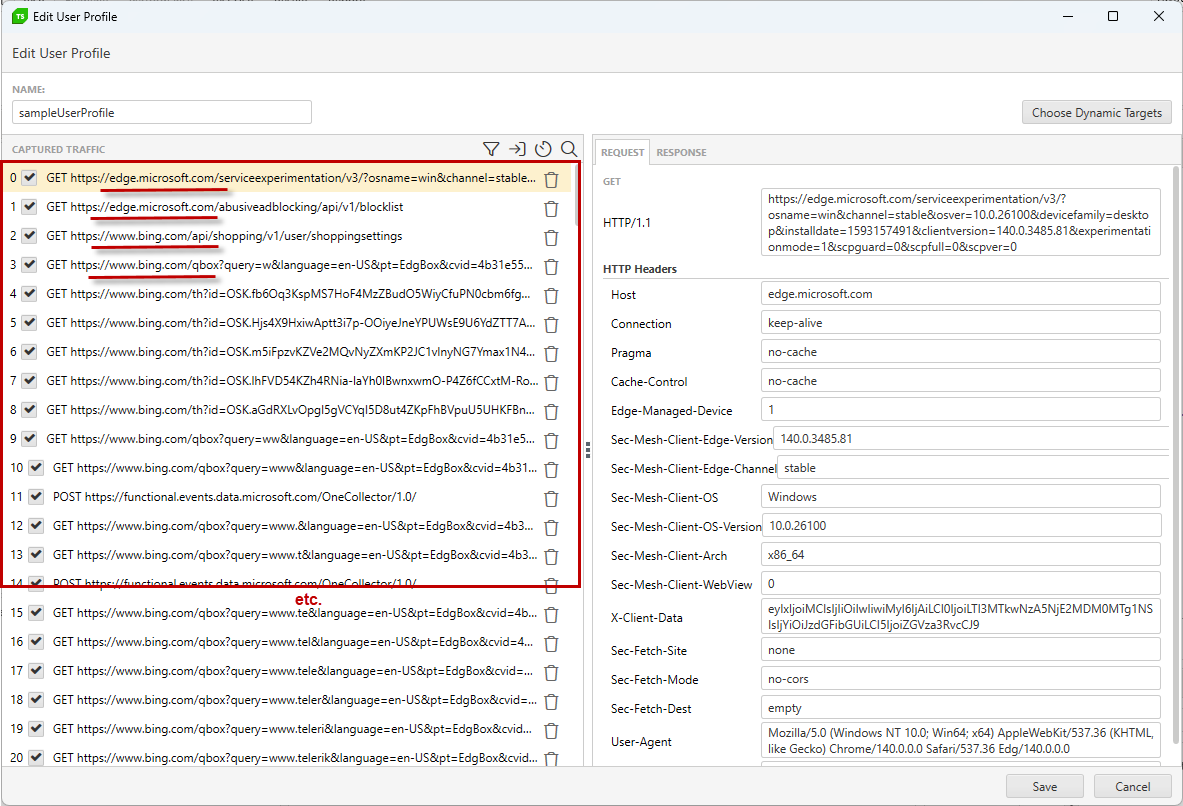
Retain only essential requests required for the actual interactions with the application server.
Configuring Dynamic Targets
-
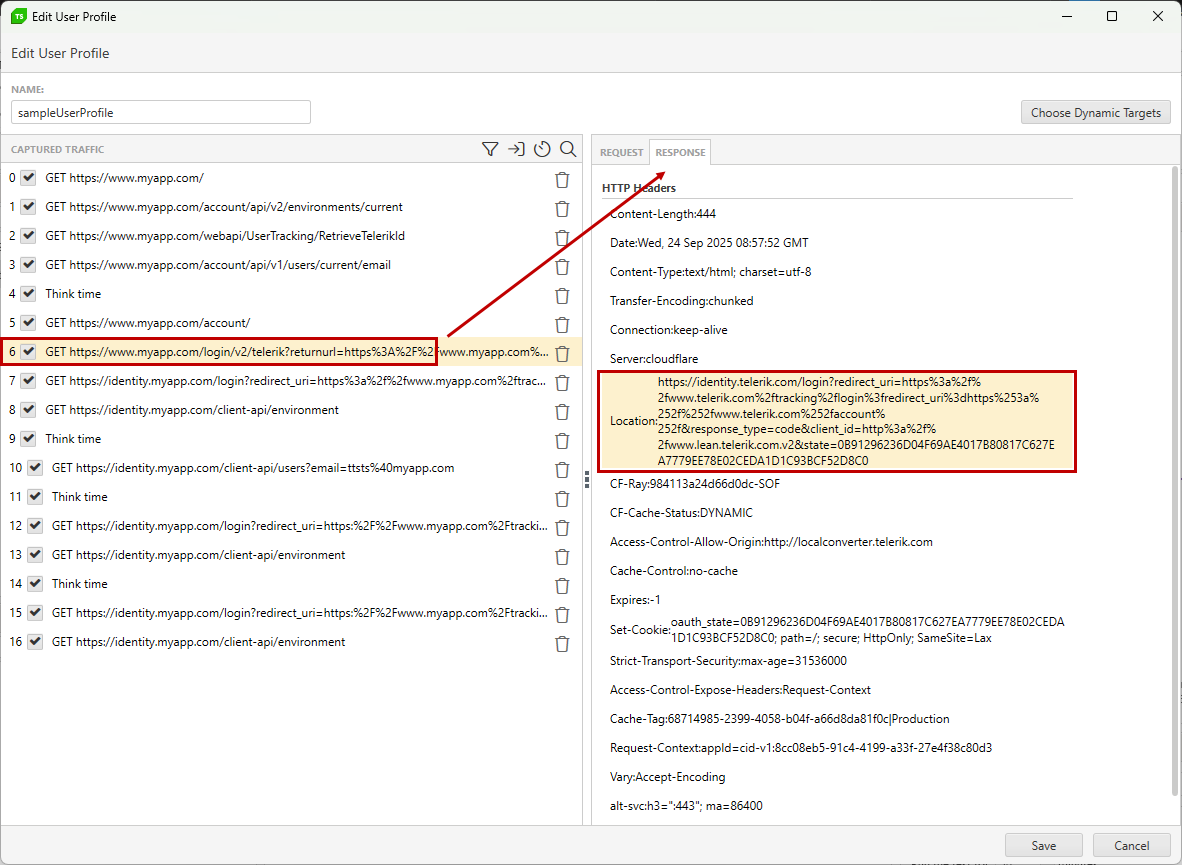
Review the captured traffic which remains after clearing the non-essential requests and drill down which are the dynamic session identifiers - such as cookies, headers, or query parameters - exchanged during the web test execution. These identifiers ensure the user session is accepted from the application server as a valid one so they need to be correctly handled during the load test execution.
Dynamic value returned in response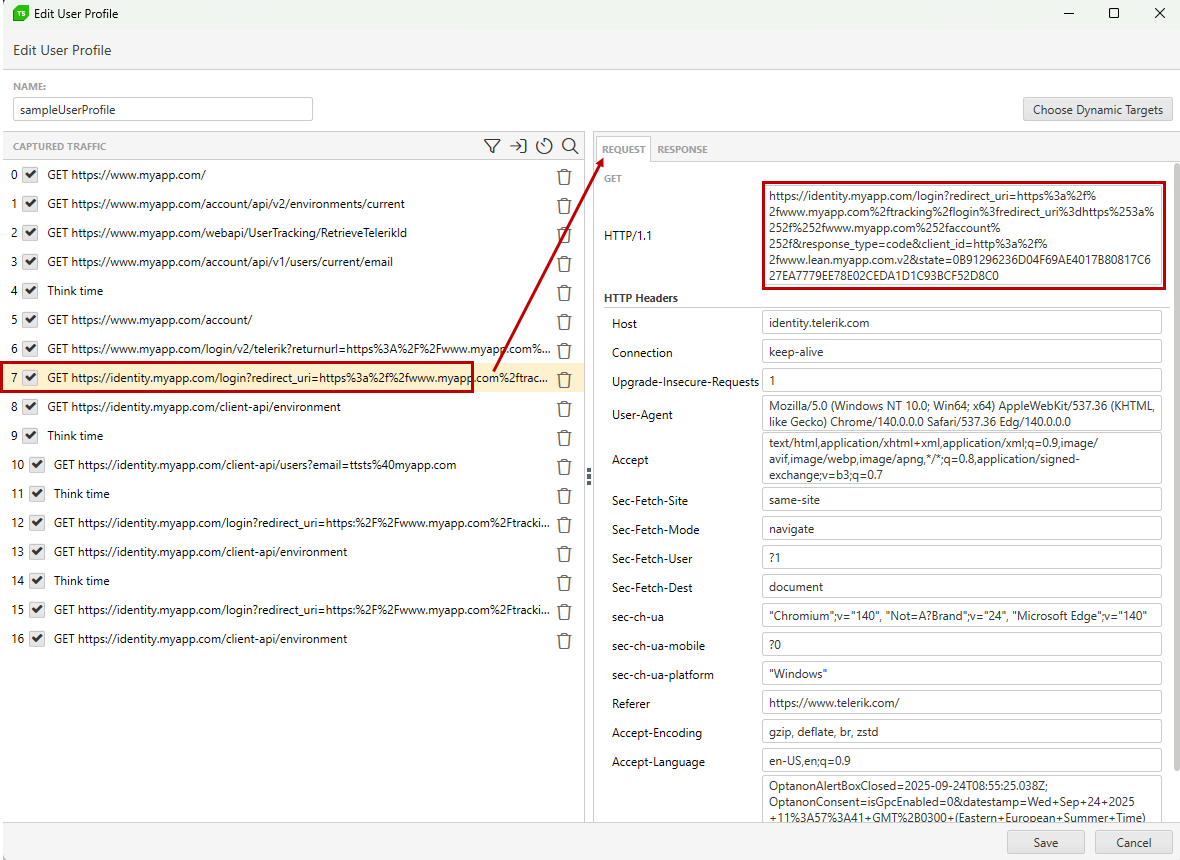
Reused dynamic value in next requestAdd dynamic targets to replace these identifiers for each virtual user:
- Use the source step properties to define the part of the response (e.g., body, headers, cookies).
- Use the search options to pinpoint specific dynamic values.
- Set up the destination step properties to reuse the dynamic value (e.g., as a header, query parameter, or cookie).
Tip
The example shows setting a dynamic target to cover a redirect to specific URL generated during the current user session.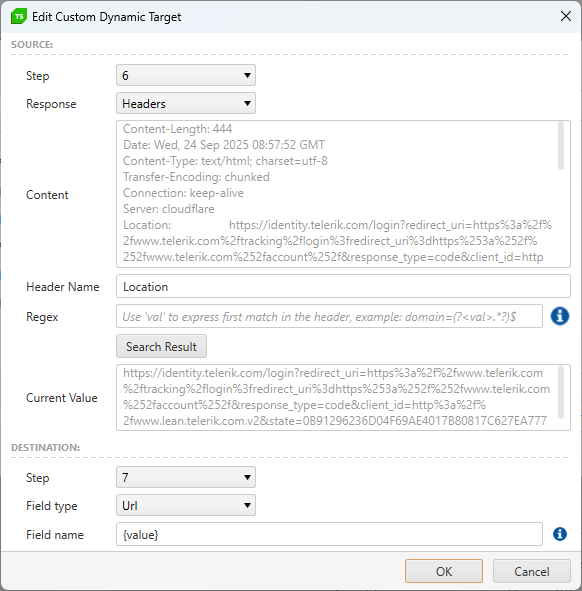
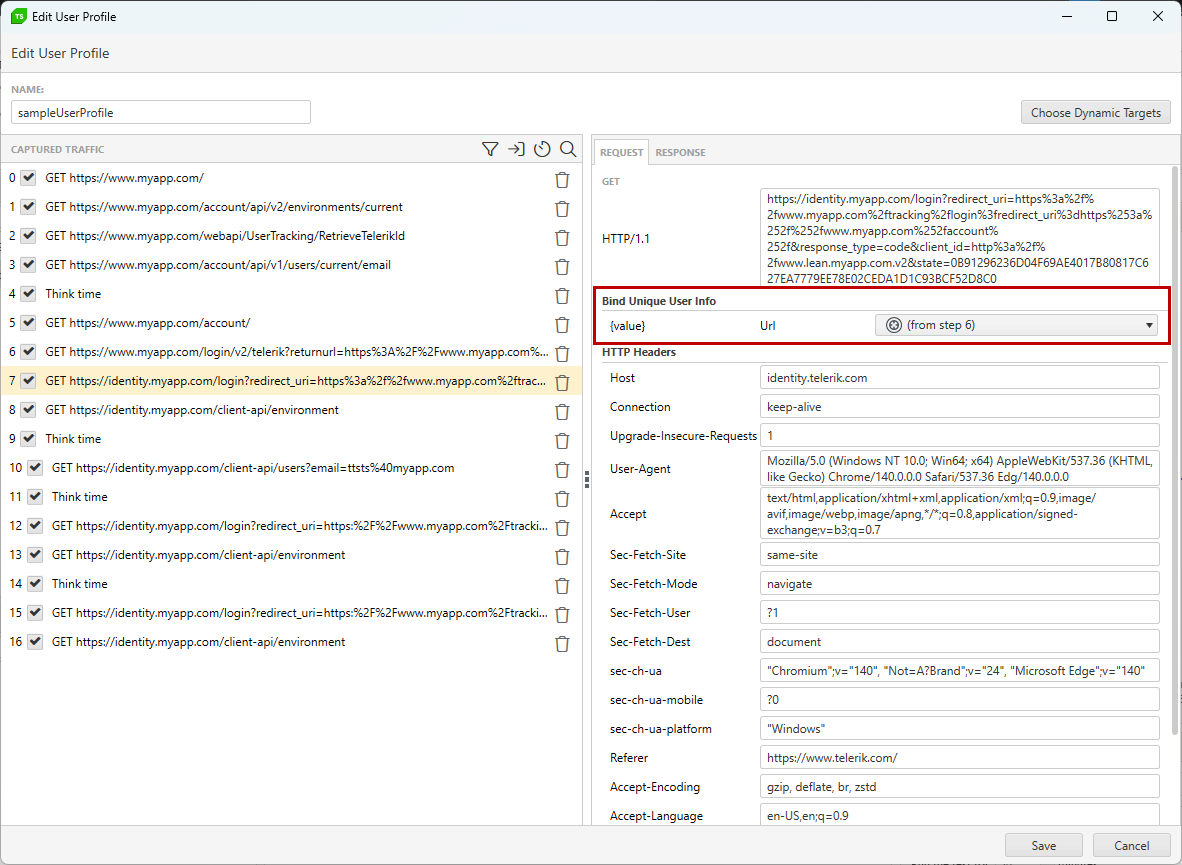
- After adding the custom dynamic target you can see it listed in the target step request field.
Refer to this blog post about dynamic targets for another detailed example of setting up a Request Verification token.
- Iterate through all requests in the captured traffic to identify all necessary dynamic targets. Usually in real life scenario more than one dynamic identifier needs to be transferred from one step's response to the following requests.
- E.g.:
- A session identifier cookie returned in one request's response is then used in all following requests. So you need a dynamic target for each step.
- Or, in one request's response you find a session identifier cookie and a verification token which are reused in the next step - these two need separate dynamic targets from one step to the other.
Adding Think Times
Include think times in the user profile to simulate realistic user behavior.
Users typically need time to process the displayed information before interacting with the application, and the think times simulate delays between requests in your User Profile. That way executing the load test ensures accurate user behavior simulation.
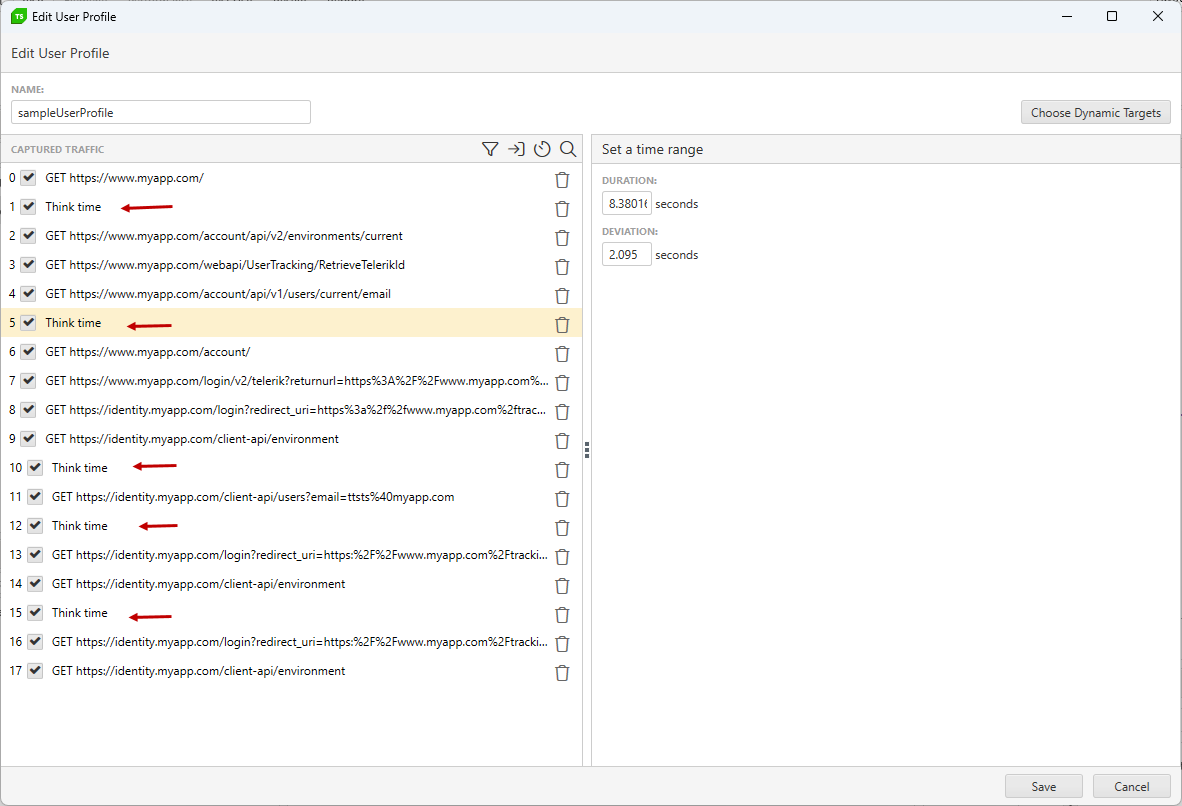
The general recommendation is to insert a think time between every few requests which represent certain user action. You can refer to the following sample workflow:
- Load initial URL of the application;
- Insert think time - allow the user time to enter username and password, and to hit the Login button;
- Next few requests cover the authentication process and expected is that the user is now logged;
- Insert think time - allow the user time to process the next action in scenario, e.g. to fulfill a form and submit it;
- Next few requests cover submitting the form and getting response from the application server;
- Etc.
Running the Load Test
- Set the test to run with 1 virtual user for 1 minute to verify the setup and ensure all requests execute successfully.
- Once verified, increase the number of virtual users and test duration to simulate the desired load.
- When the User profile is validated and you are sure it covers the user workflow, you can use remote execution to simulate high user concurrency effectively.
Additional Resources
- Getting Started with Load Testing in Test Studio
- Dynamic Targets Overview
- Load Test Settings
- Modifying User Profiles in Load Tests
- Best Practices for Running Load Tests
- Step-by-Step: Load Testing
- Designing Load Tests with Test Studio and Fiddler Everywhere in 6 Easy Steps
See Also