Exporting Data from DataGridView Control to Excel File
Environment
| Version | Product | Author |
|---|---|---|
| 2025.4.1104 | RadSpreadProcessing | Desislava Yordanova |
Description
Export the data from a WinForms DataGridView control to an Excel file in XLSX format, including header information. I want to achieve this using Telerik Document Processing RadSpreadProcessing in a Visual Studio C# Windows Forms application.
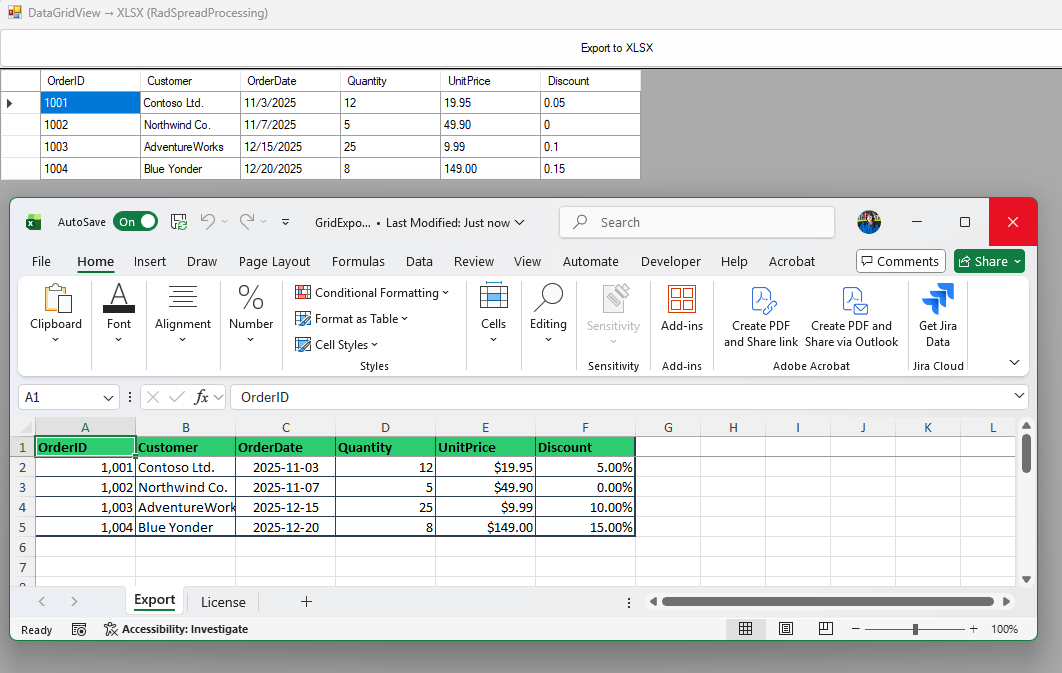
Solution
Use Telerik Document Processing RadSpreadProcessing to create an Excel file programmatically. Follow these steps:
- Create a Windows Forms application and add a DataGridView control to display your data.
- Add a button to trigger the export functionality.
- Use RadSpreadProcessing to export data from the DataGridView to an Excel file.
Here is the complete example:
    public partial class Form1 : Form
    {

        private DataGridView _grid;
        private System.Windows.Forms.Button _btnExport;

        public Form1()
        {
            InitializeComponent();


            this.Text = "DataGridView → XLSX (RadSpreadProcessing)";
            this.Width = 900;
            this.Height = 500;

            _grid = new DataGridView
            {
                Dock = DockStyle.Fill,
                AutoGenerateColumns = true,
                AllowUserToAddRows = false,
                ReadOnly = true
            };

            _btnExport = new System.Windows.Forms.Button
            {
                Text = "Export to XLSX",
                Dock = DockStyle.Top,
                Height = 40
            };
            _btnExport.Click += OnExportClick;

            this.Controls.Add(_grid);
            this.Controls.Add(_btnExport);

            LoadSampleData();

        }
        private void LoadSampleData()
        {
            // Create a simple DataTable with mixed types
            var table = new DataTable("Orders");
            table.Columns.Add("OrderID", typeof(int));
            table.Columns.Add("Customer", typeof(string));
            table.Columns.Add("OrderDate", typeof(DateTime));
            table.Columns.Add("Quantity", typeof(int));
            table.Columns.Add("UnitPrice", typeof(decimal));
            table.Columns.Add("Discount", typeof(double));   // as percent (0.0 .. 1.0)

            // Sample rows
            table.Rows.Add(1001, "Contoso Ltd.", new DateTime(2025, 11, 3), 12, 19.95m, 0.05);
            table.Rows.Add(1002, "Northwind Co.", new DateTime(2025, 11, 7), 5, 49.90m, 0.00);
            table.Rows.Add(1003, "AdventureWorks", new DateTime(2025, 12, 15), 25, 9.99m, 0.10);
            table.Rows.Add(1004, "Blue Yonder", new DateTime(2025, 12, 20), 8, 149.00m, 0.15);

            _grid.DataSource = table;
        }

        private void OnExportClick(object sender, EventArgs e)
        {
            if (_grid.DataSource == null)
            {
                MessageBox.Show("No data to export.");
                return;
            }

            using (var sfd = new SaveFileDialog
            {
                Filter = "Excel Workbook (*.xlsx)|*.xlsx",
                FileName = "GridExport.xlsx",
                Title = "Save XLSX"
            })
            {
                if (sfd.ShowDialog(this) != DialogResult.OK)
                    return;

                try
                {
                    ExportGridToXlsx(sfd.FileName);
                    if (MessageBox.Show("Export complete. Open file?", "Export", MessageBoxButtons.YesNo, MessageBoxIcon.Information) == DialogResult.Yes)
                    {
                        System.Diagnostics.Process.Start(new System.Diagnostics.ProcessStartInfo
                        {
                            FileName = sfd.FileName,
                            UseShellExecute = true
                        });
                    }
                }
                catch (Exception ex)
                {
                    MessageBox.Show($"Export failed:\n{ex.Message}", "Error", MessageBoxButtons.OK, MessageBoxIcon.Error);
                }
            }
        }

        private void ExportGridToXlsx(string filePath)
        {
            // Build a workbook in memory
            var workbook = new Workbook();

            var worksheet = workbook.Worksheets.Add();
            worksheet.Name = "Export";

            // Optional: page setup and margins if you later print or export to PDF
            var ps = worksheet.WorksheetPageSetup;
            ps.PageOrientation = PageOrientation.Portrait;
            ps.PaperType = PaperTypes.A4;
            ps.Margins = new PageMargins(20, 20, 20, 20); // points

            // Write headers (DataGridView columns)
            int colCount = _grid.Columns.Count;
            int rowCount = _grid.Rows.Count;

            // Set some column widths and write header text bold
            for (int c = 0; c < colCount; c++)
            {
                var headerText = _grid.Columns[c].HeaderText;
                var headerCell = worksheet.Cells[0, c];
                headerCell.SetValue(headerText);

                // Bold & fill color for header:
                var headerSel = worksheet.Cells[0, c];
                headerSel.SetIsBold(true);

                PatternFill solidPatternFill = new PatternFill(PatternType.Solid, System.Windows.Media.Color.FromArgb(255, 46, 204, 113), Colors.Transparent);
                headerSel.SetFill(solidPatternFill);
                headerSel.SetVerticalAlignment(RadVerticalAlignment.Center);

                // Auto width guess: you can adjust per your needs
                worksheet.Columns[c].SetWidth(new ColumnWidth(100, true)); // 100 pixels approx.
            }

            // Write data rows
            for (int r = 0; r < rowCount; r++)
            {
                var gridRow = _grid.Rows[r];
                for (int c = 0; c < colCount; c++)
                {
                    var cell = worksheet.Cells[r + 1, c]; // +1 because row 0 is header
                    object value = gridRow.Cells[c].Value;

                    // Set value by type for proper Excel typing & formatting later
                    if (value is null || value == DBNull.Value)
                    {
                        cell.SetValue(string.Empty);
                        continue;
                    }

                    var type = value.GetType();

                    if (type == typeof(int))
                    {
                        cell.SetValue(Convert.ToInt32(value));
                        // Example: integer with thousands sep → "#,##0"
                        cell.SetFormat(new CellValueFormat("#,##0"));
                        cell.SetHorizontalAlignment(RadHorizontalAlignment.Right);
                    }
                    else if (type == typeof(decimal) || type == typeof(double) || type == typeof(float))
                    {
                        double d = Convert.ToDouble(value, CultureInfo.InvariantCulture);

                        // Detect if the column name looks like price/amount to apply currency-ish format,
                        // or if Discount/Percent → percentage format. Customize as needed:
                        string header = _grid.Columns[c].HeaderText?.ToLowerInvariant() ?? string.Empty;

                        if (header.Contains("price") || header.Contains("amount") || header.Contains("unit"))
                        {
                            cell.SetValue(d);
                            cell.SetFormat(new CellValueFormat("$#,##0.00")); // set currency symbol or use custom
                        }
                        else if (header.Contains("discount") || header.Contains("percent"))
                        {
                            cell.SetValue(d); // e.g., 0.15
                            cell.SetFormat(new CellValueFormat("0.00%")); // renders as 15.00%
                        }
                        else
                        {
                            cell.SetValue(d);
                            cell.SetFormat(new CellValueFormat("#,##0.00"));
                        }

                        cell.SetHorizontalAlignment(RadHorizontalAlignment.Right);
                    }
                    else if (type == typeof(DateTime))
                    {
                        cell.SetValue((DateTime)value);
                        // Excel-style date format (adjust to your locale)
                        cell.SetFormat(new CellValueFormat("yyyy-mm-dd")); // ISO-like
                        cell.SetHorizontalAlignment(RadHorizontalAlignment.Center);
                    }
                    else
                    {
                        // Treat as text
                        cell.SetValue(Convert.ToString(value, CultureInfo.CurrentCulture));
                    }
                }
            }

            // Add table borders (optional): apply thin border to used range
            var used = worksheet.UsedCellRange;
            if (used != null)
            {
                ThemableColor darkBlue = new ThemableColor(System.Windows.Media.Color.FromArgb(255, 44, 62, 80));
                CellBorders darkBlueBorders = new CellBorders(
                                new CellBorder(CellBorderStyle.Medium, darkBlue),   // Left border
                                new CellBorder(CellBorderStyle.Medium, darkBlue),   // Top border
                                new CellBorder(CellBorderStyle.Medium, darkBlue),   // Right border
                                new CellBorder(CellBorderStyle.Medium, darkBlue),   // Bottom border
                                new CellBorder(CellBorderStyle.Thin, darkBlue),       // Inside horizontal border
                                new CellBorder(CellBorderStyle.Thin, darkBlue),       // Inside vertical border
                                new CellBorder(CellBorderStyle.None, darkBlue),     // Diagonal up border
                                new CellBorder(CellBorderStyle.None, darkBlue));    // Diagonal down border

                worksheet.Cells[used.FromIndex.RowIndex, used.FromIndex.ColumnIndex, used.ToIndex.RowIndex, used.ToIndex.ColumnIndex]
                         .SetBorders(darkBlueBorders);
            }

            // Optional: freeze header row
            worksheet.ViewState.FreezePanes(1, 0);

            // Save to XLSX
            var xlsx = new XlsxFormatProvider();
            using (var fs = new FileStream(filePath, FileMode.Create, FileAccess.Write))
            {
                xlsx.Export(workbook, fs, TimeSpan.FromSeconds(10));
            }
        }

    }